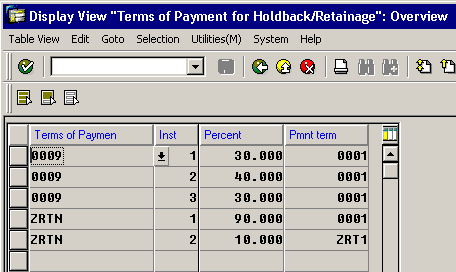
Configure Invoice Retention

Transaction Codes used – OBB8, OBB9

AR retentions: Contractually, the construction company and the owner define that a certain amount of the contract value is only paid after a certain timeframe (after a guarantee period). The retention amount can be calculated using SD conditions on the contract/sales order.

AR retention starts from the processes in L35: Contracting. When the contract is signed with the customer, the retention payment term is maintained on the contract to reflect this payment agreement.

When the billing point is reached, the project manager creates a billing document. The billing document can be configured to automatically transferred to finance to generate accounting document. The billing document can also be manually configured to check and release separately for additional authorization control

After the billing document is released to accounting, according to the defined retention term, the actual amount and due date of Accounts receivable is calculated and reflected on the account detail information. The accounting clerk can check this information.

The customer will pay the money according to retention. The accounting clerk entered the received money into the system to clear the relevant account receivable.

1 AR Retention

1.1 Check Customer Billing Document

Use

In this activity, you check the billing document and release it.

In some cases, the billing document is automatically released. If the billing document has already been released, the Release to accounting steps below (steps 11 and 12) can be skipped.

Prerequisites

The billing document was created in the L35 scenario, Contracting in section 2.6 Creating Billing Document.

Procedure

1. Access the transaction choosing one of the following navigation options:

SAP R/3 menu

Logistics ®Sales and Distribution ® Billing ® Billing Documentà Change

Business Role

Project Manager

Transaction code

VA03

2. On the Display Order: Initial screen, in the Order field, choose F4 Help.

3. On the Search dialog box, on the Loading Agenda: Sales Doc. Grouped by PO. Number: Customer tab, enter the following data:

Field name

Description

User action and values

Comment

Purchase Order Number

Test – Milestone*

Sold to Party

EC0600

4. Choose Start Search. The system finds the Sales order number, 1 . Double-click it to enter the value in the Order field.

5. Choose Display Document Flow. On the Document Flow screen, select the Invoice 009xxxxxxx line item and choose Display document to display the document detail.

6. On the Invoice 9xxxxxxx (F2) Display: Overview of Billing Items screen, check the total amount of billing document, and make a note of the amount ___________.

7. From the menu, choose Goto à Header à Header.

8. On the Invoice 9xxxxxxx (F2) Display: Header screen, on the Header tab, in the Price data section, ensure that the value of the payment terms is RTN1.

9. Choose Back.

10. On the Invoice 9xxxxxxx (F2) Display: Overview of Billing Items screen, from the menu, choose Billing Document à Change.

11. On the Change Billing Document screen, choose Rel. to Accounting.

12. The system displays the message Document 9XXXXXXX has been saved.

13. Choose Exit twice.

Result

An Accounting document is generated from the sales order billing document. This function can be automatically achieved when you create the billing document. Depending on the configuration, normally, the project manager usually checks the billing document first and then releases it to Accounting.

1.2 Display Customer’s Account Information

Use

This activity displays the customer’s account information.

Procedure

1. Access the transaction choosing one of the following navigation options:

SAP ECC 5.0 Menu

Accounting ® Financial Accounting ® Customers ® Account ® Display/Change Line Items

Business Role

Accounting Clerk

Transaction code

FBL5N

2. On the Customer Line Item Display screen, enter the following basic data:

Field name

User action and values

Comment

Customer

EC0600

Company

BP01

Line Item Selection:

Status

Select Open items

Open at Key Date: Current Date

Type

Select Normal Items

3. Choose Execute.

4. On the Customer Line Item Display screen, choose Change Layout.

5. From the Hidden Fields panel, choose the Net due Date and Payment term fields, then choose Show Selected Fields to transfer these fields from right panel to left panel.

6. Choose Copy.

7. One the Customer Line Item Display screen, find your created invoice document by looking up the document number.

There are two lines with this document number. Check the amount, payment due date and payment term. One line should have a 90% amount, a due date that is the current date, and a new payment term of 0001. Another line has a 10% retention amount, a due date of current date plus 1 year, and a payment term of BLCK.

8. Choose Cancel twice.

Result

An invoice with Retention Payment Terms has been automatically split into two line items with different new payment terms.

Payment Term ZRT1 (due in 365 days)

Payment Term ZRT1 (due in 365 days)

Splitting the Payment into 90% and 10% (retention)

Splitting the Payment into 90% and 10% (retention)

Configure Downpayment

The following Customizing settings have to be made for down payment processing:

Settings for the billing plan – To activate the billing plan function, maintain the materials, for which you wish to process down payments, with item category group 0005 (milestone billing). This gives the item type TAO via item type determination. The item type TAO calls up the billing plan function.

You need to implement the following activities in the billing plan for down payments:

Maintain deadline category – This determines the billing rule (percentage or value down payment) for the down payment request. The system assigns billing type FAZ (payment request) defined in the standard system with billing category P. (For the billing type FAZ there is the cancellation billing document type FAS in the standard system).

Maintain the deadline proposal – Use the down payments that are due for the proposed deadlines.

Maintaining a Pricing Procedure with the Condition Type AZWR:

In the standard system the condition type AZWR is delivered for the down payment value already provided but which has not yet been calculated. You must include this condition type in the relevant pricing procedure before output tax.

Enter condition 2 (item with pricing) and the calculation formula 48 (down payment clearing value must not be bigger than the item value) for the condition type AZWR.

Before the condition AZWR you can create a subtotal with the base value calculation formula 2 (net value). If the condition AZWR is changed manually, you can get information on the original system proposal from the subtotal.

Maintain the printing indicator – The pricing procedure can not be marked as a transaction-specific pricing procedure (field Spec.proc.) The condition type AZWR has the calculation type B (fixed amount) and the condition category E (down payment request / clearing).

Maintaining the Billing Document – In the standard system there is the billing type FAZ (down payment request) and the billing type FAS for canceling . The down payment is controlled using the billing category P of the billing type. A billing type becomes a down payment request when the billing category P is assigned. You have to maintain blocking reason 02 (complete confirmation missing) for the billing documents and assign it to billing type FAZ.

Copying control – Copying requirement 20 must be entered in copying control at item level for the down payment request. In the standard system the order type TA for copying control is set up according to the billing type FAZ for the item category TAO.

Copying requirement 23 must be entered in copying control at item level for down payment clearing. In the standard system the order type TA for copying control is set up according to the billing type F2 for the item category TAO.

Financial Accounting settings – A prerequisite for down payment processing is that the account is assigned to the underlying sales document. To do this, change the field status settings in Customizing as follows:

Set reconciliation accounts (transaction OBXR) – For the `received down payments’ and `down payment requests’ from
the G/L accounts you have selected, you should assign the field status definition G031.

Maintain accounting configuration (transaction OBXB) – For the down payments (posting key ANZ in the standard system) and the output tax clearing (posting key MVA in the standard system), you must maintain the posting key.

You must also carry out a G/L account number assignment for the tax account.

Maintain the posting key (transaction OB41) – For posting key 19, set the sales order as an optional field !!!

Maintain the field status definition (transaction OB14) – For field status variant 0001, field status group G031, set the
sales order as an optional field !!!

Assign the company code to the field status variants (transaction OBC5)

IS-Retail : TCODES

R11

Merchandise Related Master Data

Transaction code

transaction text

SU3

Maintain User Profile

MM41

Create Article

MM42

Chang Article

MM43

Display Article

WSL11

Evaluation of listing condition

WSO7

Display Assortment Module Assignment to Assortment

MASS_MARC

Logistic/replenishment Mass Maintenance

REFSITE

Reference Sites Mangement

WSL1

Listing conditions

MR21

Price Change

MB1C

Enter Other Goods Receipts

MB1B

Enter Transfer Posting

MB03

Display Transfer Posting

RWBE

Stock Overview

R12

Retail Pricing

Transaction code

transaction text

SU3

Maintain User Profile

VKP5

Create Price Calculation

WPMA

Direct Request For POS Outbound

WMB1

Create Price Entry

WKK1

Create Market-basket Price Calculation

SPRO

Assign Price Point Group to Org. Level/Merchandise Category

WVA3

Display VKP Calcultion Sur

WVA7

Display VKP Calcultion Sur

WEV3

Display Ret. Markup SP Ca

MEKE

Conditions By Vendor

ME21N

Create Purchase Order

V-61

Create Customer Discount Condition

V-64

Display Customer Discount

VK13

Display Condition Records

V/LD

Execute Pricing Report

VA01

Create Sales Order

MEI4

Create Automatic Document worklist

BD22

Delete Change Pointers

WVN0

Generate Pricing Worklist

WVN1

Release Worklist

R13

Assortment Management

Transaction code

transaction text

SU3

Maintain User Profile

WSOA3

Assortment Display

WSOA1

Assortment Create

WSOA2

Assortment Change

WSOA6

Assortment Assignment Tool

REFSITE

Reference Sites Mangement

WSL5

Modules In Assortment

MM41

Create Article

MM42

Chang Article

WSL1

Listing conditions

WSP4

Create Individual Listing Material / Assortment

WSO1

Assortment Module Create

WSO5

Maintain Assortment Module assignment to Assortment

SE38

ABAP Editor

WLWB

Space Management: Layout Workbench

WPLG

Display Article In Layout Module

WLCN

Delete All Listing Conditions From Layout Module

WSOA1

Assortment Create

WSK1

Assortment Copy

WSPL

Display / edit article master segments that cannot be generted

WSL0

Merchandise Categories – Article Assortments Consistency Check

WSP6

Delete Individual Listing Material/Assortment

WSM8

Reorganize Listing Conditions By Merchandise Category

WSM4A

Automatic Relisting Via Change to Assortment Master Data

WSL11

Evaluation of listing condition

WB02

Site Change

MB1C

Enter Other Goods Receipts

WSE4

Article Discontinuation( Article / Site Discontinuation)

WSM9

Deletion of Obselete Listing Conditions

SE16

Data Browser

R21

Procurement of Replenishable Merchandise

Transaction code

transaction text

SU3

Maintain User Profile

MM42

Chang Article

MP30

Execute Forecast: Initial

MP33

Forecast Reprocessing

MD21

Display Planning File Entries

MD03

Requirements Planning Single-Item, Single-Level

MD05

RP List

MD04

Stock/Requirements List

MB01

Enter Other Goods Receipts

ME01

Maintain Source List

ME51

Create Purchase Requisition

ME52

Change Purchase Requisition

ME59

Automatic Creation of Purchase Orders from Requisitions

ME21N

Create Purchase Order

MIGO

Goods Receipt for Purchase Order

ME13

Display Info Record

ME31K

Create Contract

ME33K

Display Contract

RWBE

Stock Overview

MB1C

Enter Other Goods Receipts

WWP1

Planning Workbench

WWP3

Planning Workbench

SPRO

Maintain Rounding Profile

WB02

Site Change

MK02

Change Vendor

MD04

Display Stock/Requirements Situation

WLB1

Determining Requirements for Investment Buying

WLB6

ROI-Based PO Proposal for Purchase Price Changes

WLB2

Investment Buying Analysis

WLB13

Automatic Load Building

WLB4

Results List for Automatic Load Building Run

WLB5

Combine a Number of POs to Create a Collective Purchase Order

ME2L

Purchasing Documents per Vendor

ME23N

Display Purchase Order

ME61

Maintain Vendor Evaluation

ME63

Calculate Scores for Semi-Automatic and Automatic Subcriteria

ME64

Evaluation Comparison

ME65

Ranking List of Vendors

ME6B

Ranking List of Vendor Evaluations Based on Material/Material Group

R22

Procurement of Non-replenishable Merchandise

Transaction code

transaction text

SU3

Maintain User Profile

MM41

Create Article

MM42

Chang Article

WSL1

Listing conditions

MR21

Price Change – Overview

ME51

Create Purchase Requisition

ME41

Create RFQ

ME47

Maintain Quotation

MB1C

Other Goods Receipts

ME49

Price Comparison List

ME1E

Quotation Price History

ME48

Display Quotation

ME4M

Purchasing Documents for Article

ME21N

Create Purchase Order

ME28

Release (Approve) Purchasing Documents

MB01

Goods Receipt for Purchase Order

ME2L

Display Purchasing Documents per Vendor

ME23N

Display Purchase Order

SPRO

Maintain Rounding Profile

MD03

Single Item, Single Level

MD04

Stock/Requirements List

RWBE

Stock Overview

WLB13

Automatic Load Building

WLB4

Results List for Automatic Load Building Run

WLB5

Bundle multiple orders logically

ME63

Calculate Scores for Semi-Automatic and Automatic Subcriteria

ME61

Maintain Vendor Evaluation

ME64

Evaluation Comparison

ME65

Ranking List of Vendors

ME6B

Ranking List of Vendor Evaluations Based on Material/Material Group

R23

Fresh Items Procurement

Transaction code

transaction text

SU3

Maintain User Profile

WDBI

Assortment List: Initialization and Full Version

WDFR

Perishables Planning

MB1C

Other Goods Receipts

MIGO

Goods Receipt Purchase Order

WF30

Merchandise Distribution: Monitor

VL06O

Outbound Delivery Monitor

MB0A

Goods Receipt-PO Unknown

WDFR

Perishables Planning

VL10B

Fast Display Purchase Orders,

MB01

Post Goods Receipt for PO

RWBE

Stock Overview

ME61

Maintain Vendor Evaluation

ME63

Calculate Scores for Semi-Automatic and Automatic Subcriteria

MEKH

Market Price

ME64

Evaluation Comparison

ME65

Ranking List of Vendors

ME6B

Ranking List of Vendor Evaluations Based on Material/Material Group

R25

Subsequent Settlement

Transaction code

transaction text

SU3

Maintain User Profile

MEB3

Display Rebate arrangement

MEU2

Perform Comparison of Business Volumes

MEB4

Create Settlement Document Via Report

MEB3

Create Service Notification-Malfn.

MEB1

Create Agreement

ME21N

Create Purchase Order

MB01

Goods Receipt for Purchase Order

ME81

Analysis of Order Values

MIRO

Enter Invoice

MEB8

Detailed Settlement

SECATT

Generating business volume with CATT

SECATT

Generating business volume with CATT

R26

Invoice Verification

Transaction code

transaction text

SU3

Maintain User Profile

ME21N

Create Purchase Order

MB01

Goods Receipt for Purchase Order

ME81

Analysis of Order Values

MIRO

Enter Incoming Invoice

MIR4

Display Invoice Document

MIR7

Park Invoice

MIRA

Enter Invoice for Invoice verification in Background

WC23

Invoice Verification-Background Check

MRRL

Evaluated Receipt Settlement (ERS)

ME22N

Retroactive Price Changes in Purchase Order

MRNB

Revaluation with Log. Invoice Verification

MIR6

Invoice Overview-Selection Criteria

MRBR

Release Blocked Invoices

R31

Sales Order Management

Transaction code

transaction text

SU3

Maintain User Profile

VV32

Change Export Billing Document

VV31

Create Export Billing Document

MB1C

Enter Other Goods Receipts

ME21N

Create Purchase Order

VV32

Change Export Billing Document

RWBE

Stock Overview

VV31

Create Export Billing Document

VA01

Create Sales Order

MM42

Chang Article

VA03

Display Sales Order

RWBE

Stock Overview

VL01N

Enter Other Goods Receipts

LT03

Create Transfer Order for Delivery Note

LT12

Confirm Transfer Order

ME5A

Displaying Purchase Requisition

ME81

Analysis of Order Values

MIRO

Enter Invoice

VA02

Change Sales Order

SECATT

Backorder Processing

WFRE

Distribution of Returns Among Backorders

V_V2

Rescheduling sales and stock transfer documents

VA05

List of Sales Order

V_R2

Rescheduling of sales and stock transfer documents

SECATT

Generating Processing Document(s) via CATT

VF01

Create Billing Document

VF05

List of Billing Documents

VF02

Change Billing Doc

VF04

Maintain Billing Due List

V.21

Log of Collective Run

F-29

Post Customer Down Payment

F-39

Clear Customer Down Payment

VL02N

Outbound Delivery Single Document

VF31

Output from Billing

MB1B

Enter Transfer Posting

VL06O

Outbound Delivery Monitor

VBO3

Displaying the Status of Rebate Agreement

VBO2

Settlement of the Agreement

VBO1

Creating Rebate Agreement

VBOF

Update Billing Documents

LT03

Create Transfer Order for Delivery Note

LT12

Confirm Transfer Order

VA02

Releasing Credit Memo Request for the Partial Rebate Settlement

VL01N

Create Outbound Delivery with Order Reference

VA01

Create Sales Order

VA03

Display Sales Order

VA41

Create Contract

VA43

Display Contract

CV01N

Create Document

MM42

Chang Article

MM43

Display Article

WWM1

Create product catalog

XD02

Customer Display

OVKK

Define Pricing Procedure Determination

SPRO

Maintain Pricing Procedures

WWM2

Change Product Catalog

WAK2

Promotion Change

R32

Instore Customer Relationship Management

Transaction code

transaction text

SU3

Maintain User Profile

SICF

HTTP Service Hierarchy Maintenance

ME5A

List Display of Purchase Requisitions

ME21N

Generating a Purchase Order on the Basis of the Purchase Requisition

MIRO

Entering an Incoming Vendor Invoice

VF01

Create Billing Document

VF02

Change Billing Doc

R33

Service – Return Processing

Transaction code

transaction text

SU3

Maintain User Profile

WPMI

POS Outbound:Initialization

WPMA

Direct request for POS ountbound

WPER

POS Interface Monitor

WPMU

Creating Change Message

WE02

Displaying Created IDocs in POS Monitor

MM42

Chang Article

VD02

Customer Change

WB60

Creating Site Group

WB66

Maintain Assignment of Sites

WAK1

Create promotion

WE02

Displaying Idoc

WDBI

Initialization and Full Version

WDBM

Manual Selection Assortment List

RWBE

Stock Overview

MB1C

Other Goods Receipts

WPUK

POS Simulation:Selection

WPUF

Cash Removal

FB03

Displaying Accounting Document

FAGLL03

Displaying Clearing Account

WPCA

Execute Settlement

F-06

Post Incoming Payments:Header Data

WVFB

Simulation Store Orders:Header Data Selection

WE02

Displaying Confirmation Order

VL10B

Fast Display Purchase Orders,

VL02N

Outbound Delivery Single Document

WPUW

Goods Movements

MB0A

Returning Goods to Vendor

MB1B

Posting Goods to ‘Unrestricted Use’

ME23N

Displaying Purchase Order

MIRO

Invoice Verification

WR60

Replenishment:Parameter Overview

ME27

Create Purchase Order

WRP1

Replenishment:Planning

VL02N

Change Outbound Delivery

LT12

Confirm Transfer Order

RWBE

Stock Overview

WB02

Site Change

MB1C

Enter Other Goods Receipts

MI01

Create physical inventory document

MI31

Selected Data for Phys. Inventory Docmts W/O Special Stock

MI02

Change physical inventory document

WVFD

Send physical inventory document

WVFI

Simulation:Store Physical Inventory/Sales Price Change

MI03

Display physical inventory document

MI20

List of Inventory Differences

MIDO

Display Physical Inventory Overview

WPUW

Goods Movements

WPUS

Simulation:Inbound Processing

WE19

Test tool for IDoc processing

MM41

Create Article

VBG1

Create Article Grouping

VBK1

Create bonus buy

R34

Store Business online

Transaction code

transaction text

SU3

Maintain User Profile

SICF

HTTP Service Hierarchy Maintenance

WB02

Site Change

WSOA6

Assortment Assignment Tool

WSM8

Reorganize Listing Conditions By Merchandise Category

WDBI

Assortment List:Initialization and Full Version

WA01

Create allocation table:Initial

WA08

Follow-On Document Generation Allocation Table

VL02N

Change Outbound Delivery

WAK1

Create Promotion

WAK5

Promo. Subsequent processing

WPUK

POS Simulation

MM42

Change Article

VL10B

Fast display Purchase Orders

VL02N

Change Outbound Delivery

WMBE

Stock Overview

MB1C

Enter Other Goods Receipts

VKP1

Change Price Calculation

VKU6

Revaluation at Retail

R35

Promotion Management

Transaction code

transaction text

SU3

Maintain User Profile

RWBE

Stock Overview

MB1C

Enter Other Goods Receipts

WB60

Creating Site Group

WB66

Maintaining Site Group

WA21

Allocation Rule Create

WAK1

Create promotion

WAK5

Promo. Subsequent processing

WAK2

Change Promotion

WA08

Follow-On Document Generation Allocation Table

VL06O

Outbound Delivery Monitor

MB0A

Goods Receipt-PO Unknown

WAK15

Promotions per Site

WAK14

Promotions per article

VA01

Create Sales Order

VL01N

Create Outbound Delivery with Order Reference

VL06P

Outbound Deliveries for Picking

VL06C

Confirming Transfer Order and Post Goods Issue

VL03N

Display Outbound Delivery

VF01

Create Billing Document

R41

Distribution Center Logistics with Lean-WM

Transaction code

transaction text

ME21N

Create Purchase Order

VL31N

Creating Inbound Delivery

WAP2

Create Purchase Order

VL41

Create Rough Goods Receipt

WAP2

Create Purchase Order

MB0A

Goods Receipt – PO Unkown

MB03

Display Article Document

MBRL

Enter Return Delivery

MB02

Change Article Document

MB90

Output from Goods Movements

VL01NO

Create Output Delivery Without Order Reference

LT03

Create Transfer Order for Delivery Note

LT12

Confirm Transfer Order

VL02N

Posting Goods issue

VL01NO

Create Outbound Delivery Without Order Reference

VL35

Create Piching Waves According to Delivery Compare Times

VL06P

Outbound Deliveries for Picking

LT42

Create TOs by Mult.Processing

LT25N

Transfer Order for Each Group

VLSP

Subsequent Outbound-Delivery Split

VL06G

Outbound Deliveries for Goods Issue

MI01

Create physical inventory document

MI31

Selected Data for phys.Inventory Docmts W/o Special Stock

MI04

Enter inventory count

MI20

List of Inventory Differences

MIDO

Display Physical Inventory Overview

VL06O

Outbound Delivery Monitor

VL37

Wave Pick Monitor

VLLG

Rough Workload Estimate

R42

Distribution Center Logistics With Lean Warehouse Management

Transaction code

transaction text

SU3

Maintain User Profile

RWBE

IM Stock Overview

LS26

WM Stock Overview

SPRO

Assign Processor to Queues

ME21N

Create Purchase Order

VL31N

Creating Inbound Delivery

WAP2

Create Purchase Order

VL41

Create Rough Goods Receipt

MB0A

Goods Receipt – PO Unknown

LT06

Create Transfer Order for Article Document

LT12

Confirm Transfer order

LRF1

Resource Planning with the RF Monitor

LM00

Mobile Data Entry

LRF1

Monitoring with the RF Monitor

MB03

Display Article Document

MBRL

Enter Return Delivery

MB02

Change Article Document

MB90

Output from Goods Movements

LB12

Process Article Document

LP21

Replenishment for Fixed Bins in WM

LB10

Display Transfer Requirement: List for Storage Type

VL01NO

Create Outbound Delivery Without Order Reference

LT03

Create Transfer Order for Delivery Note

LRF1

Resource Planning in the Monitor for Mobile Data Entry

LRF1

Monitoring from the Mobile Data Entry Monitor

VL02N

Posting Goods Issue

VL35

Create Picking Waves According to Delivery Compare Times

VL06P

Outbound Deliveries for Picking

LT42

Create TOs by Mult. Processing

LT25N

Transfer Orders for Each Group

VLSP

Subsequent Outbound-Delivery Split

VL06G

Outbound Deliveries for Goods Issue

LX16

Carry out Continuous Inventory

LI11N

Enter Inventory Count

LI14

Start Recount

LI20

Clear Differences in WM

LI21

Clearing of differences in Inventory Management

LX18

Statistics for Inventory Differences

LX25

Inventory status

LL01

Warehouse Activity Monitor

VL06O

Outbound Deliveries for Picking

VL37

Wave Pick Monitor

VLLG

Rough Workload Estimate: Total Overview

R43

Merchandise Distribution

Transaction code

transaction text

SU3

Maintain User Profile

ME21N

Create Purchase Order

ME31K

Create contract

WA21

Allocation Rule Create

WA01

Create Allocation Table

WA11

Allocation Table Message Bundling / Notification Creation

WA04

Create Notification

WA08

Create Follow-On Documents

MB01

Goods Receipt for Purchase Order

WF10

Create Purchase Order

MB01

Create Purchase Order

WF30

Adjusting Distribution and Generating an Outbound Delivery

VL06O

Outbound Delivery Monitor

VL02N

Outbound Delivery Single Document

WF50

Adjusting Distribution

WF70

Creating Distribution Order

LT23

Display Distribution Order

WF60

Generating Outbound Delivery

WA01

Create allocation table:Initial

R50

ECR-Compliant Procurement Processes

Transaction code

transaction text

PRICAT

Initial Screen: Price Catalog Maintenance

PRICATCUS1

Change View “Assignment of ILN-Vendor-Purchasing group”: Overview

PRICATCUS2

Change View “Assignment of ILN-merch.catgry-SAP merch.catgry”: Ove

PRICATCUS3

Change View “Assignment of SAP merchandise category – purchasing group”

WE19

Test tool for IDoc processing

WE20

Partner profiles

ME21N

Create Purchase Order

WE02

Idoc list

ME23N

Display Purchase Order

MB0A

Goods Receipt – PO Unknown: Initial Screen

MIR4

Display Invoice Document

WVM2

Transfer of Stock and Sales Data


Assortment and listing

TCODES – WSM3 (Mass maintenance), WSP4 (Individual listing)

This component allows you to create merchandise assortments and assortment modules and assign articles to them. Articles can be automatically assigned directly to assortments as a result of checking rules during article maintenance or assortment maintenance functions. Alternatively, you can manually assign articles to assortment modules and then in turn assign the modules to assortments. In both cases, the system automatically generates listing conditions for each valid combination of article and assortment.

By assigning assortments to sites you control which assortments — and which articles — a store can purchase or sell. A site cannot purchase or sell an article that is not contained in one of its assortment.

When you create listing conditions, you also specify a listing period. This determines the timeframe during which sites can procure and sell the articles.

Listing conditions

The assignment of the individual articles to assortments is recorded in what are called listing conditions. These listing conditions contain the following:

  • The periods of time for which an article is to be assigned to an assortment
  • Inclusive or exclusive assignment (that is, whether an article is to be listed or excluded from listing)
  • The number of the module which caused the listing conditions to be generated
  • Whether the listing is for a promotion listing
  • Whether the module is assigned to a rack jobber
  • Whether an article is listed as a component of a structured article

In the case of manual listing using manually created assortment modules, the system creates listing conditions based on the assignment of the assortment module to an assortment.

In the case of automatic listing, the system uses listing rules to create listing conditions.


Allocation

Retailers often have to centrally distribute merchandise among a large number of recipients (for example, stores). One example would be fashion merchandise or promotional items. Using allocation tables, you can plan the distribution of this type of merchandise and then trigger the necessary goods movements.

You can have the merchandise delivered directly from the vendor to the recipient, from the vendor to a distribution center and then to the recipient, or from a distribution center to a recipient.

After you have completed the planning stage, you can then have the system automatically create documents for procuring or delivering the goods.

Allocation table – wa01, wa02, wa03

Allocation Rule – wa21, wa22, wa23

Follow-on documents – wa03, wa08

Components of an Allocation Table –

The allocation table in made up of various components. The following is a short description of the main ones:

  • Allocation Table Header

An allocation table has one header.

The header contains information such as the allocation table number, the organizational levels for which it is valid (purchasing organization and purchasing group) and a header text.

  • Allocation Table Item

An item is assigned to the header.

Each allocation table can have a number of items. An item contains information such as the items category, the article number, the planned quantity, the allocation rule or site group used and the item status.

  • Site Group

A site group is assigned to an allocation table item.

The information displayed on the site group includes the number of the site group, the number of sites assigned to it, the quotas and the planned quantities.

  • Site

A site is assigned to a site group.

The information displayed on the site includes the number of the site, the planned quantity for the site and supply source.

  • Distribution Center

A distribution center is assigned to one or more sites.

The information displayed on the distribution center includes the number of the distribution center, the planned quantity and the external vendor supplying the distribution center.

  • Delivery Phase for a Site or Distribution Center

A delivery phase is assigned to a site/distribution center.

The information displayed on the delivery phase includes the delivery date, the order date and the delivery quantity.

Allocation Table Set-Up

The following is a simplified example of how an allocation table can be set up. Allocation rule 17 is used to determine how merchandise in a particular merchandise category is split up among the sites in site group R0021. The merchandise is split up in the ratio 6:4 between the two sites R151 and R152 in the site group. Variants 1 and 2 are to be allocated for the generic article 1.

Item

Article

Alloc. rule

Site group

Site

Quantity

10

Single article 1

17

2000

R0021

2000

R151

1200

R152

800

20

Generic article 1

17

1000

R0021

1000

R151

600

R152

400

30

Variant 1 of item 20

17

700

R0021

700

R151

420

R152

280

40

Variant 2 of item 20

17

300

R0021

300

R151

180

R152

120

Synchronising Allocation table for Order changes –

You usually define allocation tables at an early stage in your business processes because you plan and order fashion goods, for example, with a long lead time. If your requirements change after you have created a purchase order but before the goods are delivered, for example, due to new stores opening, you can change the existing purchase order.

The system updates allocation-relevant changes in purchase orders to the relevant allocation tables.

Integration

You make changes to allocation-relevant purchase order items in purchase order processing for Seasonal Procurement. A log provides you with information about changes and about the synchronization of the allocation table.

The system synchronizes an allocation table in the background when purchase orders are changed.

Prerequisites

· You have generated a vendor order (Seasonal Procurement) as a follow-on document for an allocation table, manually created an allocation table with reference to a purchase order (Seasonal Procurement), or generated an allocation table with reference to a purchase order based on operational assortment planning and control.

· Apart from the vendor order there are no other follow-on documents for recipients of the corresponding allocation table item.

Direct delivery orders cannot be synchronized.

· The purchase order item that you change must be uniquely linked to a delivery phase of the distribution center for an allocation table, otherwise synchronization is not possible.

Features

When the following data is changed, the system updates the changes to the allocation table:

· Purchase order quantity and order unit

· Delivery date in distribution center

· Distribution center

· Flag for allocation table relevance

· Deletion of a purchase order item

You can use a Business Add-In (BAdI) to specify that when the allocation table is synchronized, the data for the distribution center be adjusted, but not the data for the recipient.

For more information, see Customizing for Logistics – General under Merchandise DistributionAllocation Allocation Table Business Add-Ins for the Allocation Table BAdI: Synchronizing Allocation Table for Changes to PO Items.

Activities

If you change purchase order items in purchase order processing for Seasonal Procurement and confirm your changes, the system first simulates synchronization of the corresponding allocation items. The changes are only effective in the database once you have saved them.

In both cases, you can check the results of changes in a log.

Synchronization is performed in several steps:

1. The system checks whether follow-on documents exist for recipients of the allocation table item. If they do, the system cannot change the allocation table and it issues a message to purchase order processing stating this.

2. The system copies the changes in the purchase order item to the distribution center of the relevant allocation table item.

3. The system copies changes that are relevant for the allocation table item from the purchase order item. While changes to the delivery date are not relevant, changes to quantities, for example, are.

4. The system transfers changes that are relevant for recipients for the individual allocation items .

You can use a BAdI to deactivate synchronization of recipient data.

5. It is possible that after the system transfers changes from the purchase order item to the allocation table items, these allocation table items will be incomplete. To ensure that the items are complete again and you are able to generate follow-on documents, you must post process incomplete allocation table items in the item overview of the allocation table.

Deleting Allocation Table

Choose the ‘Delete Allocation Table’ screen.

  1. In the Deletion for frame, choose Alloc tbl.
  2. Enter the required criteria for selecting the allocation tables to be deleted, for example purchasing organization, purchasing group or the allocation table number
  3. Enter the status of allocation tables you want to select. A distinction is made between:
    • Status Not active

An allocation table has this status if no follow-on documents have been generated for it. This type of deletion is used in cases where you have just created an allocation table but you realize immediately that it is not required (because the data entered was not correct or the allocation is not needed after all) and can be deleted.

    • Status Done

An allocation table has this status if all follow-on documents have been generated for it.

  1. Choose Program

Execute.

Reserve Fields

Reserve fields in the customer master record

The customer master includes reserve fields that are not assigned to any particular function. You can assign value to these fields and use them. To maintain the fields, select “Environment -> Additional data” on a customer master maintenance screen. The general data and the sales area data contain different fields:

    1. Ten fields were included in table KNA1 (general part of customer master record):
    Five two-digit fields:
    • KATR 1 (Attribute 1)
    • KATR 2 (Attribute 2)
    • KATR 3 (Attribute 3)
    • KATR 4 (Attribute 4)
    • KATR 5 (Attribute 5)
    Five three-digit fields:
    • KATR 6 (Attribute 1)
    • KATR 7 (Attribute 2)
    • KATR 8 (Attribute 3)
    • KATR 9 (Attribute 4)
    • KATR 10 (Atrribute 5)
    Check tables TVKO – TVK9 and the corresponding maintenance views
    V_TVV1 – V_TVK9 exist for the fields.
    2. Five three-digit fields were included in table KNVV (Sales data of the customer master record):
    • KVGR1 (Customer group 1)
    • KVGR2 (Customer group 2)
    • KVGR3 (Customer group 3)
    • KVGR4 (Customer group 4)
    • KVGR5 (Customer group 5)
    Check tables TVV1 – TVV5 and the corresponding maintenance views V_TVV1 – V_TVV5 exist for the fields. The fields were included in tables VBAK, VRRP, LIPS, KUAGVZ. Value is also assigned to them in the tables, which means that they were copied from the master record of the sold-party and used in the sales and distribution transaction.

Note

In the standard system, the views are not included in the user interface. However, it is possible for you to include them in the user interface.

Using reserve fields

To use a reserve field of the customer master according to your requirements, proceed as follows:

    1. Change the short descriptions of the data elements by using the SAP enhancement.
    2. Choose Tools -> ABAB Workbench -> Utilities -> Enhancements -> Project management -> Text enhancements -> Key words -> Change.
    3. Maintain the corresponding entity tables TVKO-TVK9 or TVV1-TVV5.

Example

You want to use the reserve fields of the customer master (general part) to store the liquidity level of your customer to use for statistical analyses. Proceed as follows:

    1. Change data element KATR1:
    • Change the short description “Attribute 1” to “Customer liquidity”.
    • Change the corresponding key words.
    2. Aktivate data element KATR1.
    3. Maintain entity table TVK1, by defining the following values:
    • “01” good liquidity
    • “02” average liquidity
    • “03” poor liquidity
    4. Use the same procedure for the remaining reserve fields KATR2-KATR10.

Reserve fields in the material master

Five three-digit fields were also included in material master MVKE. The entity tables TVM1 – TVM5 and the corresponding maintenance views V_TVM1 -V_TVM5 exist for these fields. The fields were included in the tables VBAP, VRRP, LIPS, MAAPV, where value is assigned to them. However, you cannot yet enter the fields in the material master maintenance. To use the reserve fields, proceed as described above for customer master maintenance.

Reserve fields in the sales order

In the sales order, the additional fields VBAK-KVGR1 – VBAK-KVGR5 were included at header level, to which value is assigned from the fields KNVV-KVGR1 – KNVV-KVGR5.

In the sales order, the additional fields VBAP-KVGR1 – VBAP-KVGR5 were included at item level, to which value is assigned from the fields MVKE-MVGR1 – MVKE-MVGR5.

To reach the additional fields in the sales document, select Header -> Additional data or Item -> Additional data.

New Fields For Material Determination

  • The following communication structures are relevant for material determination
    • KOMKD (Material determination – communication header)
    • KOMPD (Material determination – communication item)
    • KOMGD (Material determination – allowed fields)
    • For technical reasons, the communication structure KOMGD is used, which combines KOMKD and KOMPD, and which contains all fields that can generally be used for material determination. When entering new fields in KOMKD or KOMPD, the fields are also automatically included in KOMGD.

New fields for material determination are included in the following INCLUDES:

    • Header data: KOMKDZ (INCLUDE in KOMKD, KOMGD)
    • Item data: KOMPDZ (INCLUDE in KOMPD, KOMGD)

The routines for assigning values to the new fields in order processing are in member MV45AFZA. Use the following user exits:

    • USEREXIT_MOVE_FIELD_TO_KOMKD (header fields)
    • USEREXIT_MOVE_FIELD_TO_KOMPD (item fields)

New Fields For Output Control

  • The following communication structures are relevant for output control:
    • KOMKBK1  (Output Determination Communication Area CAS Appl. K1)
    • KOMKBV1  (Output Determination Communication Area Header Appl. V1)
    • KOMKBV2  (Output Determination Communication Area Header Appl. V2)
    • KOMKBV3  (Output Determination Communication Area Header Appl. V3)
    • KOMKBV5  (Communication Structure for Output Control Groups Appl. V5)
    • KOMKBV7  (Output Determination Communication Area Shipment Appl. V7)
    • KOMPBV1  (Output Determination Communication Area Item Appl. V1)
    • KOMPBV2  (Output Determination Communication Area Item Appl. V2)
    • KOMPBV3  (Output Determination Communication Area Item Appl. V3)
    • KOMB     (Field Catalog for Condition Keys: Output Control)
  • New fields for output control are entered in the following INCLUDEs:
    • Sales activities: KOMKBZ1 (in KOMKBK1)
    • Sales document header: KOMKBZ3 (in KOMKBV1)
    • Delivery header: KOMKBZ4 (in KOMKBV2)
    • Groups header: KOMKBZF (in KOMKBV5)
    • Billing document header: KOMKBZ5 (in KOMKBV3)
    • Sales document item: KOMPBZ1 (in KOMPBV1)
    • Delivery item: KOMPBZ3 (in KOMPBV2)
    • Billing document item: KOMKBZ5 (in KOMPBV3)
    • Shipment: KOMKBZH (in KOMKBV7)
    If you also want to use a new field for the setup of condition tables (key field) it must also be included in the structure KOMBZ (contained in KOMB).
  • The routines and user exits for assigning values to the new fields are found in the programs RVCOMFZZ, RVCOMFZ1, RVCOMFZ4, and LVCOMFZ1. It is also possible to copy partners here.
    The following user exits exist in member RVCOMFZ1:
    • USEREXIT_KOMPBV2_FILL (item fields in delivery)
    • USEREXIT_KOMPBV2_PARTNER (item fields for partners in delivery)
    • USEREXIT_KOMPBV3_FILL (item fields in billing document)
    • USEREXIT_KOMPBV3_PARTNER (item fields for partners in billing document)
    The following user exits exist in member RVCOMFZZ:
    • USEREXIT_KOMKBK1_FILL (header fields in sales activities)
    • USEREXIT_KOMKBK1_PARTNER (header fields for partners in sales activ.)
    • USEREXIT_KOMKBV1_FILL (header fields for sales documents)
    • USEREXIT_KOMKBV1_PARTNER (header fields for partners in sales documents)
    • USEREXIT_KOMKBV2_FILL (header fields in delivery)
    • USEREXIT_KOMKBV2_PARTNER (header fields for partners in delivery)
    • USEREXIT_KOMKBV3_FILL (header fields in billing document)
    • USEREXIT_KOMKBV3_PARTNER (header fields for partners in billing doc.)
    The following user exit exists in member RVCOMFZ4:
    • USEREXIT_KOMKBV5_FILL (header field for groups)
    The following user exits exist in member LVCOMFZ1:
    • USEREXIT_KOMPBV7_FILL (Shipment fields for header and stage)
    • USEREXIT_KOMPBV7_PARTNER (Shipment fields for partners)

In output determination, communication table KOMB contains all key fields that can be used for conditions for output determination.

When you create new fields for output determination, you can distinguish between two types of fields:

  • Fields that are used in condition tables
  • Fields that are only used to query conditions.

Both types of field have to be included in KOMKBV1. Fields which are only used to query conditions do not have to be included in KOMB and T681F or in the field catalog.

Note concerning name assignment

There are two possibilities for naming the field:

    • If the field is identical to the field in the communication table (e.g. VBAK), a value is assigned to it automatically by MOVE-CORRESPONDING. If SAP delivers the field in a subsequent system version, no generation errors will be caused.
    • If the field is not identical with the field in the communication table,you have to assign a value to it using the MOVE command. Begin the field name with the letters ZZ. This will avoid generation errors if the field is later delivered by SAP in a subsequent system version.

Example 1: Creating a new key field in output control

If, for example, you want to use the field ERNAM (name of sales employee) from the sales order (table VBAK) for output determination, proceed as follows:

    1. Enter the field ZZERNAM in communication structure KOMKBV1 in INCLUDE KOMKBZ3 in the Data Dictionary.
    By entering the field in KOMKBZ3, you automatically include it in communication table KOMKBV1.
    2. Enter ZZERNAM in the communication table KOMB (in KOMBZ).
    3. Assign values to the fields
    Values are  assigned to the fields in function module KOMKBV1_FILL. You have to enter the field and assign value to it manually in user exit USEREXIT_KOMKBV1_FILL. You will find the statements that you can use as a reference in the user exits.
    Copying partner numbers is a special case and will be explained in Example 3.
    4. Include ZZERNAM in the field catalog for the condition table for sales documents. The field catalogs must contain all the fields which you want to use to structure condition tables.

Example 2: Entering a condition field in the communication block

If you want to use condition field VBAK-AUDAT for output determination, proceed as described in Example 1. Remember that it is not necessary to include the new field in KOMBZ (KOMB) or to maintain table T681F or the field catalog.

Example 3: Entering a partner number in the communication block

Example 3 presupposes that there is a new partner function for buyer ZY in the sales document and that the number of this partner is to be copied.

When entering partner numbers in the communication block, proceed as described in the examples above. Partner function ZY is assigned to partner type AP in this example.

Remember to use a different routine to assign values to the new fields. If, for example, you want to copy the partner function ZY into the new field ZZEINKA, for example, the statement is:

USEREXIT_KOMKBV1_PARTNER

WHEN ‘ZY’.COM_KBV1-ZZEINKA = COM_VBPA-PARNR.

The VBPA field used to assign a value to the new field depends on the partner function determined in the sales order. Each partner function is assigned to a partner type (e.g. partner function LF – partner type LI), which controls the assignment. Other source fields should be used for other partner types: COM_VBPA-KUNNR, COM_VBPA-LIFNR, COM_VBPA-PERNR and COM_VBPA-PARNR.

The following assignments exist:

  • KU => COM_VBPA-KUNNR
  • LI => COM_VBPA-LIFNR
  • PE => COM_VBPA-PERNR
  • AG => COM_VBPA-PARNR

ASAP

1.1 Customized ASAP Methodology

Company ABC follows the ASAP Methodology for SAP Implementation and Rollout programs. However the methodology is customized to leverage the Company ABC Global Delivery Model (GDM) and the requirements of the engagement. For the purpose of this engagement, only the Project Preparation and Business Blueprint stages are in scope. However the complete methodology is presented for a complete overview.

Company ABC has categorized the rollout track-wise as the Business Process Design, Technical Requirements, Data Migration and Training Tracks. The Rollout Track will be governed by the Company ABC Project Management Methodology. The subsequent sections explain the various phases of project as proposed by Company ABC.

ASAP Implementation Methodology for Implementation and Rollouts

The proposed Company ABC approach involves appropriate pieces of the project work being done at our offshore facilities. This approach differentiates Company ABC in that our mature Global Delivery Model (GDM) allows us to do the work where it makes the most sense. Our experience in delivering projects in this manner acknowledges that many ERP implementation project activities require hands-on, face-to-face interaction onsite. There are, however, other tasks which do lend themselves very readily to a combined onsite – offshore delivery model. The Company ABC Global Delivery Model lowers cost, enhances quality and speeds time to completion.

Phase 1: Project Preparation

The objectives of the Program Preparation phase involve aligning the program to the overall organization strategy, drafting overall project plan, resources for various phases, and conducting fit- gap analysis. The participants for this phase would be Company ABC and the client Team, Business Process Owners and super users.

Activities

Deliverables

Accelerators

· Conduct stakeholder interviews

· Identify drivers for rollout

· Understand existing systems landscape

· Discuss and agree on scope and detailed project-plan

· Finalize roles and team structure for project tasks

· Develop roadmap

· Identify Milestones

· Formalized Resource Requirements

· Project Team Roles and Responsibilities

· Project Standards

· Preliminary Training and/or Overviews

· Finalize Project Plan

· Finalize Budget

· Experience from past rollouts projects enables quick problem definition and roadmap preparation tailored to the client’s needs.

· Conduct workshops and interviews with project stakeholders

· Questionnaires for interviews and workshops to help determine scope and key pain points

Table 1. Project Preparation Snapshot

Phase 2: Business Blueprint

The objectives of the Business Blueprint phase are to lock down scope, define functional specifications, define required customizations and prepare data migration plan.

Activities during the Business blueprinting stage

Activities

Deliverables

Accelerators

· Define to-be business processes

· Develop reference template for US and Canada

· Conduct an as-is business process study

· Develop future IT landscape

· Prioritize customizations

· Finalize scope, gather requirements for conversion, customization and reporting

· Prepare Training Material and impart training

· Plan for development and documentation of requirements for data mapping, cleansing, conversion and validation

· Organizational and Master Data Design

· Detailed Process Analysis

· Gap Resolution

· Process and Solution Documentation

· Authorization Design and Approach

· Development Request Documentation

· Test Strategy

· Templates for gap analysis, functional requirements, high-level design and detailed-design documents

· Knowledge of industry best-practices

Table 2. Business Blueprinting Snapshot

Phase 3: Business Realization

The realization phase includes developing functional and technical specifications, work flow, system test plans, baseline and the final configuration. Additional activities also include creation of reports, forms; data cleansing, data migration and integration testing.

Activities during the Business Realization stage

Activities

Deliverables

Accelerators

· Complete custom development

· Final system configuration

· Functional/unit testing

· Conduct data clean-up activities

· Finalize cutover strategy

· Develop test plans and test cases

· Build integration test environment

· Build UAT environment

· Develop security roles

·

· RICE objects, forms and workflows

· Baseline and final configuration

· Converted data

· Unit test plans/scripts

· Cutover strategy and high-level plan

· Integration testing

· Security roles and profiles

· Performance monitoring plan

· Detailed strategy/plan for final prep and UAT

· Company ABC development methodology

· Best practices from Company ABC consultants

· SAP Solution Manager (optional)

· Templates for creating knowledge repository for specific industry.

· Experience in client system and business processes

· CMM Level 5 Quality Processes

Table 3. Business Realization Snapshot

Phase 4: Final Preparation

The final preparation involves validation of the solution design and development, extensive testing across the complete business cycle, user acceptance testing and preparation for Go–live & Support.

Activities during the Final Preparation stage

Activities

Deliverables

Accelerators

· Lead UAT

· Assist UAT activities

· Trial cutover

· Prepare for Go-Live including, security profile setup, helpdesk process

· Complete production data conversion

· Completed UAT; including documented test cases/scenarios

· Organization prepared for cutover

· Final configuration guide and support structure

· Impact analysis for “Go/No-Go” decision, including Go-Live success criteria

· Security roles/profile in production environment

· Production data conversion completed

· SAP, LSMW

· Company ABC consultants best practices

· Templates from Company ABC

· Checklists

· Use of testing tools like CATT for stress/ volume testing

· Test script templates enabling efficient remote execution

· Online Web-based issue tracker with context search

Table 4. Business Realization Snapshot

Phase 5: Go-live & Support

Go live & support involves transporting the customized system to the production environment and monitoring the live system.

Activities during Go-Live stage

Activities

Deliverables

Accelerators

· Execute business and systems cutover

· Activate helpdesk

· Transition to post go-live warranty support

· Finalize project documentation

· Handover to support organization

· Begin continuous improvement process

· Live production system

· Business and systems cutover

· Final configuration guide

· Service model

· Stable production system – acceptance documentation and go-live success checklist

· Production hand-off completed

· Established Procedures to ensure flawless cutover and data migration

· Extended business hours leveraging GDM to provide system support

· Proven handover methodology

Table 5. Go-Live Snapshot

1.2 Company ABC Training Methodology

Training Methodology is an integral part of the ASAP methodology at different phases of the project, namely Blue print, Realization, Final preparation & Go-Live support phases. Company ABC facilitates the Training process for the project but the client is responsible for training the users.

Provided below is the training methodology, that Company ABC follows for all its SAP Implementation/ Rollout engagements. Company ABC proposes a Training spanning across the entire SAP Rollout engagement. However considering the small number of users and already existing template in Dubai, the training activities will be redefined after discussions with Mittal Steel.

Training Project Phases Deliverables

Assess

Plan

Design Program

Audience analysis

Existing materials review

Hardware/software requirements

Identify tools

Identify standards

Work plan

Training strategy

Team onboarding

Curriculum

Templates

Develop Program

Pilot Program

Design Program

Course materials

Exercises

Job aids

Training environment

Training data

Course schedule

Role/course mapping

Course pilots

Facilities/software tests

Train-the-trainer

End-user registration

Course evaluation form

Administer training data base

Deliver courses

Course evaluations

Post Appraise Program

Provide Ongoing Support

Course evaluation summaries

Recommendations for improvement

Maintenance processes

Maintenance of training materials and data bases

Transition to permanent owners


Sales Order Changed History Display

You can execute the report by :

1.  Change Date

2.  User Name

3.  Sales Order Number

REPORT ZSDCHANGE LINE-SIZE 132 NO STANDARD PAGE HEADING

                 LINE-COUNT 065(001)

                 MESSAGE-ID VR.

TABLES: DD04T,

        CDHDR,

        CDPOS,

        DD03L,

        DD41V,

        T685T,

        VBPA,

        TPART,

        KONVC,

        VBUK.

DATA: BEGIN OF ICDHDR OCCURS 50.

        INCLUDE STRUCTURE CDHDR.

DATA: END OF ICDHDR.

SELECT-OPTIONS: XUDATE FOR ICDHDR-UDATE,

                XNAME  FOR ICDHDR-USERNAME,

                XVBELN FOR VBUK-VBELN.

SELECTION-SCREEN SKIP.

SELECTION-SCREEN BEGIN OF BLOCK BLK1 WITH FRAME TITLE TEXT-001.

PARAMETERS: SUDATE RADIOBUTTON GROUP R1,

            SNAME  RADIOBUTTON GROUP R1,

            SOBID  RADIOBUTTON GROUP R1.

SELECTION-SCREEN END OF BLOCK BLK1.

DATA: WFLAG,

      WCHANGENR LIKE CDHDR-CHANGENR,

      WUDATE LIKE CDHDR-UDATE,

      WNAME  LIKE CDHDR-USERNAME,

      WVBELN LIKE VBUK-VBELN,

      WDEC1 TYPE P DECIMALS 3,

      WDEC2 TYPE P DECIMALS 3,

      WDEC3 TYPE P DECIMALS 3,

      WDEC4 TYPE P DECIMALS 3.

DATA: UTEXT(16) VALUE 'has been changed',

      ITEXT(16) VALUE 'has been created',

      DTEXT(16) VALUE 'has been deleted'.

DATA: BEGIN OF ICDSHW OCCURS 50.

        INCLUDE STRUCTURE CDSHW.

DATA: END OF ICDSHW.

DATA: BEGIN OF ITAB OCCURS 10.

        INCLUDE STRUCTURE CDSHW.

DATA:   UDATE LIKE CDHDR-UDATE,

        USERNAME LIKE CDHDR-USERNAME,

        CHANGENR LIKE CDHDR-CHANGENR,

        VBELN(10),

        POSNR(6),

        ETENR(4),

        INDTEXT(200),

  END OF ITAB.

SELECT * FROM VBUK WHERE VBELN IN XVBELN.

  CLEAR CDHDR.

  CLEAR CDPOS.

  CDHDR-OBJECTCLAS = 'VERKBELEG'.

  CDHDR-OBJECTID   = VBUK-VBELN.

  PERFORM READHEADER.

  PERFORM READPOS.

  LOOP AT ITAB.

    CASE ITAB-TABNAME.

      WHEN 'VBPA'.

        IF ITAB-FNAME = 'KUNNR' OR

           ITAB-FNAME = 'LIFNR' OR

           ITAB-FNAME = 'PARNR' OR

           ITAB-FNAME = 'PERNR' OR

           ITAB-FNAME IS INITIAL.

         MOVE ITAB-TABKEY TO VBPA.

         SELECT SINGLE * FROM TPART WHERE SPRAS = SY-LANGU

                                   AND   PARVW = VBPA-PARVW.

         IF SY-SUBRC = 0.

           REPLACE '&' WITH TPART-VTEXT INTO ITAB-INDTEXT.

         ENDIF.

       ENDIF.

     WHEN 'VBAP'.

       IF ITAB-FNAME IS INITIAL.

         REPLACE '&' WITH 'Item' INTO ITAB-INDTEXT.

       ENDIF.

     WHEN 'KONVC'.

       MOVE ITAB-TABKEY TO KONVC.

       SELECT SINGLE * FROM T685T WHERE SPRAS = SY-LANGU

                                 AND   KVEWE = 'A'

                                 AND   KAPPL = 'V'

                                 AND   KSCHL = KONVC-KSCHL.

       IF SY-SUBRC = 0.

         REPLACE '&' WITH T685T-VTEXT INTO ITAB-INDTEXT.

       ENDIF.

     ENDCASE.

     IF ITAB-INDTEXT(1) EQ '&'.

       REPLACE '&' WITH ITAB-FTEXT(40) INTO ITAB-INDTEXT.

     ENDIF.

     IF ITAB-CHNGIND = 'I'.

       REPLACE '%' WITH ITEXT INTO ITAB-INDTEXT.

     ELSEIF ITAB-CHNGIND = 'U'.

       REPLACE '%' WITH UTEXT INTO ITAB-INDTEXT.

     ELSE.

       REPLACE '%' WITH DTEXT INTO ITAB-INDTEXT.

     ENDIF.

     CONDENSE ITAB-INDTEXT.

     MODIFY ITAB.

   ENDLOOP.

ENDSELECT.

IF SUDATE = 'X'.

  SORT ITAB BY UDATE VBELN POSNR ETENR.

ELSEIF SOBID = 'X'.

  SORT ITAB BY VBELN POSNR ETENR UDATE.

ELSE.

  SORT ITAB BY USERNAME VBELN POSNR ETENR UDATE.

ENDIF.

LOOP AT ITAB.

  CLEAR WFLAG.

  IF SUDATE = 'X'.

    IF WUDATE NE ITAB-UDATE.

      SKIP.

      WRITE:/001 ITAB-UDATE,

             023 ITAB-USERNAME,

             037(10) ITAB-VBELN.

      WFLAG = 'X'.

      WUDATE = ITAB-UDATE.

      WCHANGENR = ITAB-CHANGENR.

    ENDIF.

  ELSEIF SOBID NE 'X'.

    IF WVBELN NE ITAB-VBELN.

      SKIP.

      WRITE:/001 ITAB-VBELN.

      WVBELN = ITAB-VBELN.

    ENDIF.

  ELSE.

    IF WNAME NE ITAB-USERNAME.

      SKIP.

      WRITE:/001 ITAB-USERNAME.

      WNAME = ITAB-USERNAME.

    ENDIF.

  ENDIF.

  IF WCHANGENR NE ITAB-CHANGENR.

    WRITE:/023 ITAB-USERNAME,

           037(10) ITAB-VBELN.

       WFLAG = 'X'.

       WCHANGENR = ITAB-CHANGENR.

    ENDIF.

    IF WFLAG = 'X'.

      WRITE: 013 ITAB-CHNGIND,

             049 ITAB-POSNR,

             057 ITAB-ETENR,

             065 ITAB-INDTEXT(60).

    ELSE.

      WRITE: /013 ITAB-CHNGIND,

              049 ITAB-POSNR,

              057 ITAB-ETENR,

              065 ITAB-INDTEXT(60).

    ENDIF.

  WRITE:/065 ITAB-F_OLD.

  WRITE:/065 ITAB-F_NEW.

ENDLOOP.

FORM READHEADER.

  CALL FUNCTION 'CHANGEDOCUMENT_READ_HEADERS'

       EXPORTING

            DATE_OF_CHANGE    = CDHDR-UDATE

            OBJECTCLASS       = CDHDR-OBJECTCLAS

            OBJECTID          = CDHDR-OBJECTID

            TIME_OF_CHANGE    = CDHDR-UTIME

            USERNAME          = CDHDR-USERNAME

       TABLES

            I_CDHDR           = ICDHDR

       EXCEPTIONS

            NO_POSITION_FOUND = 1

            OTHERS            = 2.

  CASE SY-SUBRC.

    WHEN '0000'.

    WHEN '0001'.

      MESSAGE S311.

      LEAVE.

    WHEN '0002'.

      MESSAGE S311.

      LEAVE.

  ENDCASE.

ENDFORM.

FORM READPOS.

  LOOP AT ICDHDR.

    CHECK ICDHDR-UDATE

                        IN XUDATE.

    CHECK ICDHDR-USERNAME

                          IN XNAME.

    CALL FUNCTION 'CHANGEDOCUMENT_READ_POSITIONS'

         EXPORTING

              CHANGENUMBER      = ICDHDR-CHANGENR

              TABLEKEY          = CDPOS-TABKEY

              TABLENAME         = CDPOS-TABNAME

         IMPORTING

              HEADER            = CDHDR

         TABLES

              EDITPOS           = ICDSHW

         EXCEPTIONS

              NO_POSITION_FOUND = 1

              OTHERS            = 2.

    CASE SY-SUBRC.

      WHEN '0000'.

        LOOP AT ICDSHW.

          CHECK ICDSHW-CHNGIND NE 'E'.

          CLEAR ITAB.

          MOVE-CORRESPONDING ICDHDR TO ITAB.

          MOVE-CORRESPONDING ICDSHW TO ITAB.

          CASE ITAB-TABNAME.

            WHEN 'KONVC'.

              MOVE ICDHDR-OBJECTID TO ITAB-VBELN.

              MOVE ICDSHW-TABKEY(6) TO ITAB-POSNR.

            WHEN OTHERS.

              MOVE ICDSHW-TABKEY+3(10)  TO ITAB-VBELN.

              MOVE ICDSHW-TABKEY+13(6)  TO ITAB-POSNR.

              MOVE ICDSHW-TABKEY+19(4)  TO ITAB-ETENR.

          ENDCASE.

          MOVE '& %' TO ITAB-INDTEXT.

          APPEND ITAB.

          CLEAR ITAB.

        ENDLOOP.

      WHEN OTHERS.

        MESSAGE S311.

        LEAVE.

    ENDCASE.

  ENDLOOP.

ENDFORM.

TOP-OF-PAGE.

WRITE:/ SY-DATUM,SY-UZEIT,

       50 'SALES ORDER CHANGE HISTORY',

      120 'Page', SY-PAGNO.

WRITE: / SY-REPID,

         60 'SALES ORDERS STATISTICS'.

SKIP.

ULINE.

IF SUDATE = 'X'.

  WRITE:/001 'Change Date',

         013 'Time',

         023 'User Name',

         037 'Sale Order',

         049 'Line',

         057 'Sch No',

         065 'Changes'.

ELSEIF SOBID = 'X'.

  WRITE:/001 'Sale Order',

         013 'Line',

         021 'Sch No',

         029 'Change Date',

         041 'Time',

         051 'User Name',

         065 'Comment'.

ELSE.

  WRITE:/001 'User Name',

         015 'Time',

         025 'Change Date',

         037 'Sale Order',

         049 'Line',

         057 'Sch No',

         065 'Changes'.

ENDIF.

ULINE.


Implementing SAP

Implementing a package can be a traumatic affair for both the customer and the vendor. Get it wrong and the vendor may get paid late or have to resort to lawyers to get paid and tarnish their reputation. For the company the new package may not work the way they expected, be late or cost a more than budgeted for and take management will take their eye off running their business.Recently a client asked me what I would consider to be the five most important things one should consider before embarking on an implementation. This isn’t a simple question, although there are many factors to think about after some consideration for me the top five are way ahead of the others.

My top five factors to consider would be:

1. Set up a Project Board,
2. Secure the resources,
3. Complete the GAP Analysis,
4. Have detailed Cut Over Plans,
5. Train the users.

Taking each one in turn:

The Project Board
The correct set up and operation of the Project Board in my view is major factor in the success failure of the project. The Project Board will consist of the stakeholders, key users and the vendor. The Project Board is part of the governance of the project. The Project Board will meet regularly to ensure that the project plans are created and being executed as planned, moves from stage to stage with all the deliverables being signed off is resourced properly.

The Resources
Three types of resources are absolutely necessary — end users, change team and technicians.

Early involvement by the end users is absolutely necessary, as they will be the ones living with the system for hopefully many years to come. They will want to feel involved in its implementation. Buy in from the end users of the system is absolutely essential if the system is to have a long and stable life in any organisation.

The Change Team will identify the gaps between the package and the business requirements, re-engineer some of the businesses process to cope with the package, train the users to ensure implementations is smooth as possible into the business.

The Technical Team will prepare the systems environment for the package, apply any software fixes from the vendor, implement the software in the best way possible for the organisation set up and tune the software for the particular technical environment.

GAP Analysis
A through gap analysis will identify the gaps between how the business operates ad its needs against what the package can can’t do. For each gap there will be one of three outcomes which must be recorded and actioned, GAP must be closed and customised software can be developed close the gap, GAP must be closed but software cannot be written therefore a workaround is required, GAP does not need to be closed.

In simple terms: Gap means small cracks. In SAP world. In information technology, gap analysis is the study of the differences between two different information systems or applications( ex; existing system or legacy system with Client and new is SAP), often for the purpose of determining how to get from one state to a new state. A gap is sometimes spoken of as “the space between where we are and where we want to be.” Gap analysis is undertaken as a means of bridging that space.
Actual gap analysis is time consuming and it plays vital role in blue print stage.

Cut Over Plans
Detailed plans need to be developed for cutting over from the old system(s) to the new. Parallel runs of what will happen over the conversion period using test data, convert and watch for a period after wards to ensure nothing unexpected happens.

Train Users
Well trained users will support and defend the system on site. Unsupportive users will continually undermine the system and eventually it will be replaced. Therefore the more effort you put into helping the users master the system early the better.

Explain Cutover Activities/Strategies in SAP FI.

Cutover Activities or Master Data Uploading Strategies Depending upon the when we are going live. As per that, you have to give the information to your core team. If you goling live at the middle you have to upload the all P&L Account items and B/S Items. If you going live at the financial year start, you have to only Upload the B/S Items. Activities for Golive:

1. G/L Master Upload Thru BDC or LSMW (TC-Fs00 and extended one co code to another company code Fs01)
2. Vendor Master Upload Thru BDC Or LSMW (Will be Taken Care By MM)
3. Customer Master Upload Thru BDC or LSMW (Will be Taken Care By SD)
4. Asset Master Upload(Thru As90)
5. Cost Element Master Upload
6. Cost Center Master Upload
7. Profit Center Master Upload
8. G/L Balances Thru F-02
10. Vendor Balances thru F-43
11. Customer Balances thru F-22
12. Customer Advances thru f-29
13. Vendor Advances thryu F-48

Before uploading Vendor Balances you have to take care of WHT(TDS) Information.

Difference between the User Exit & Gap analysis.

Both are quiet a different and has a small relation.

User exits are standard gate ways provided by SAP to exit the standard code and we can write our own code with the help of ABAP workbench. its not new functionality which we are trying to build in sap but its slight enhancement within the same code.

Gap analysis is start point of Realization and once blue print is finished we have to find the realization of sap system for client requirment and there will be certain gaps when compared to system fit. Those gaps can be closed either by re-engineering of business process to fit with SAP or we have to use USER exits in case of small deviations or complete enhancements with the help of ABAP to fit with the SAP system.

What is roll out of SAP Project?

As per dictionary, Rollout means “Inauguration or initial exhibition of a new product”.

As per SAP specific definition, rollout is the strategy for international SAP implementation. Rollout strategy normally include the following
– Whether to implement SAP simultaneously (also known as big-bang) in all the countries, or
– Go live in sequence of phased manner
– Or to go for the combination of both (phased manner implementation for some of the countries and big-bang for others).

Rollout strategy is the most important decision that a client can make during SAP implementation. Normally, steering committee decides the rollout strategy.